Time Tracking Modes in WorkComposer
Time Tracking Modes Explained
WorkComposer offers multiple tracking modes to suit your team's unique workflow and management style. Whether you want to run everything in the background automatically, give users full control over their time tracking, or maintain a discreet presence—there's a mode designed for your needs.
Each mode balances automation, user control, and visibility differently, allowing you to choose the approach that best fits your organization's culture and productivity goals.
Quick Comparison
| Feature | Automatic | Manual | Silent | Extended Silent |
|---|---|---|---|---|
| Auto-Start | ||||
| User Controls | Full | Full | Limited | Minimal |
| Notifications | ||||
| Visibility | High | High | Low | Minimal |
| Best For | Remote teams | Freelancers | Minimal distraction | High compliance |
Automatic Mode: Effortless Tracking
The most widely used and easiest option—designed for teams that value simplicity and uninterrupted workflow. Tracking starts automatically as soon as the computer boots up and the user logs in, requiring no manual intervention.
How It Works
- Auto-Start: WorkComposer begins tracking immediately when your computer starts, capturing productive time from the moment you begin work
- Intelligent Idle Detection: The system automatically detects when you're inactive and pauses tracking, entering break mode with a notification beforehand
- Seamless Resume: When activity is detected again, tracking automatically resumes—no need to click anything
- User Interaction: Users can still view real-time reports, select tasks they're working on, see status indicators, and receive helpful notifications
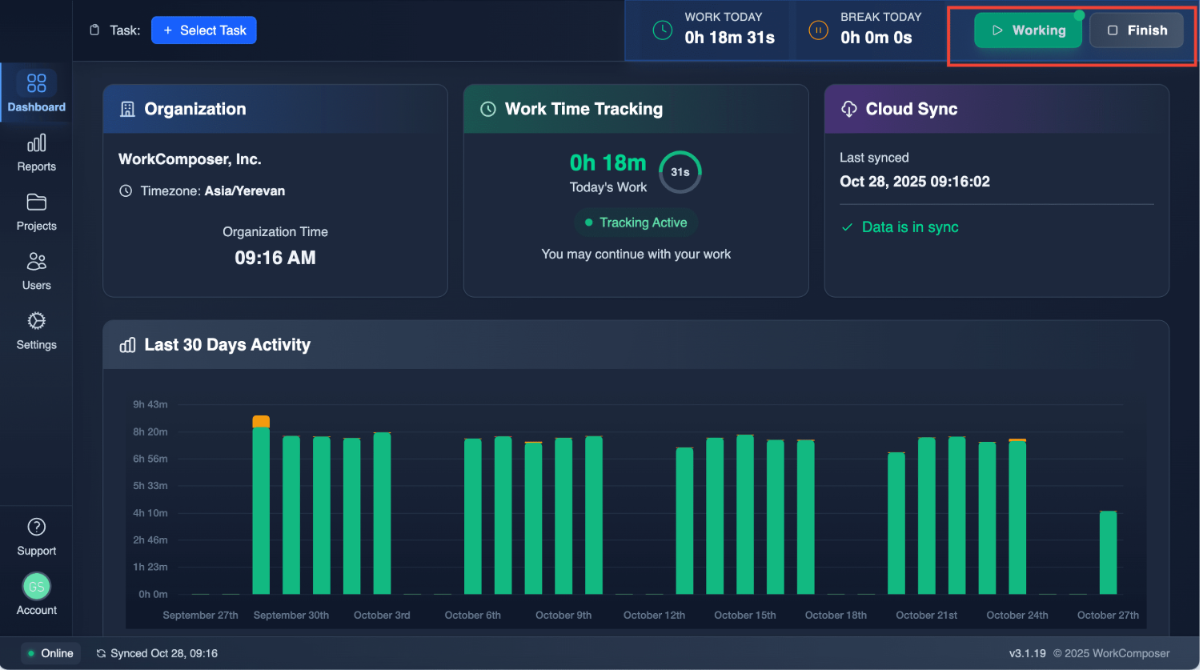
Best for: Remote teams, large companies, and managers who want hands-free time tracking without interrupting employee focus.
Manual Mode: You're in Control
Gives users full control to start and stop tracking themselves, perfect for teams where employees manage their own schedules or where not all computer time counts as work.
How It Works
- Easy Controls: The desktop app displays clear "Work," "Break," and "Finish" buttons, giving users complete control over their tracking status
- Smart Reminders: If a user forgets to start tracking, a reminder appears once activity is detected—unless the admin has explicitly disabled this feature
- Automatic Idle Detection: Even in Manual Mode, WorkComposer detects when you're idle and automatically enters break mode to ensure accuracy
- Manual Resume Required: Unlike Automatic Mode, tracking won't restart on its own when you return—users must manually click "Work" to resume tracking
- Flexible Breaks: Users can pause and resume tracking whenever needed, giving them complete flexibility throughout their workday
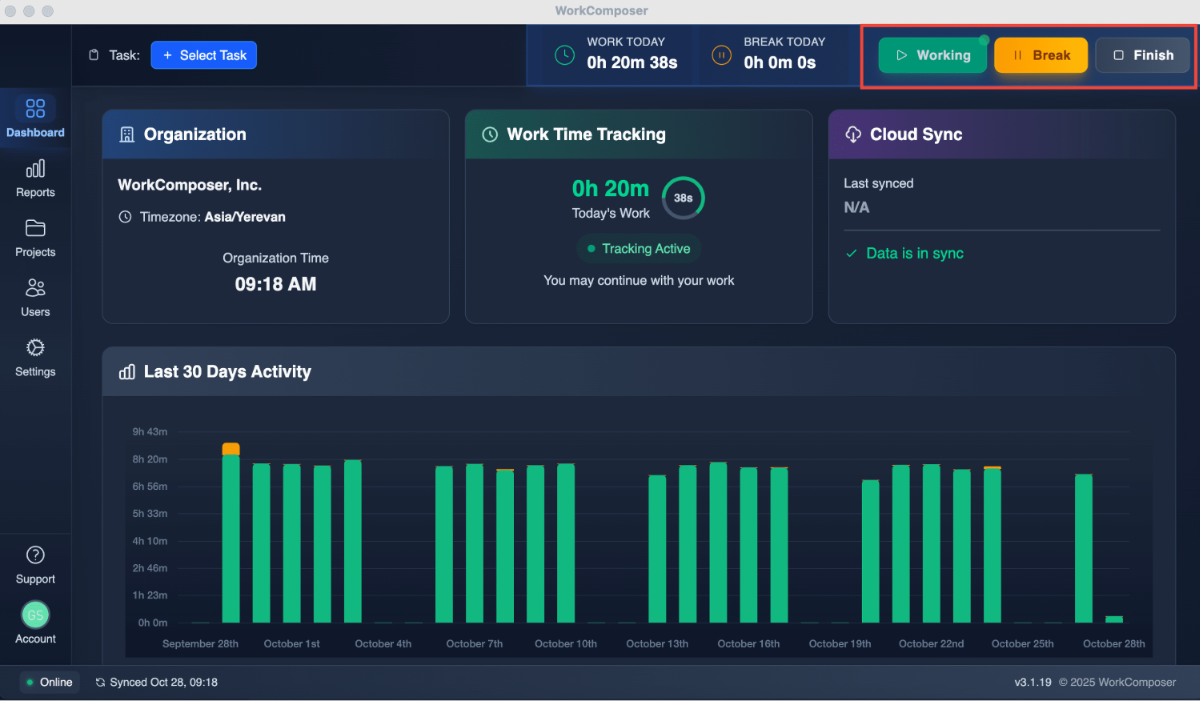
Best for: Flexible teams, freelancers, and roles where employees need control over what time is tracked as work.
Silent Mode: Discreet and Efficient
WorkComposer runs quietly in the background with minimal user interaction, combining the automation of Automatic Mode with a more discreet presence on the user's desktop.
How It Works
- Automatic Tracking: Functions like Automatic Mode with intelligent start, stop, and idle detection—completely hands-free
- No Visible Controls: Users don't have access to Work/Break/Finish buttons, so they can't directly affect tracking status
- Background Start: When the computer boots up, WorkComposer starts in the background without opening the main application window
- System Tray Presence: The WorkComposer icon remains visible in the system tray (next to the clock), allowing users to open the interface if needed to view reports and task selection
- No Interruptions: No notifications or reminders are displayed, ensuring a completely distraction-free work environment
- Optional Status Bar: Admins can optionally keep the horizontal tracking status bar visible for those who prefer to see real-time tracking status
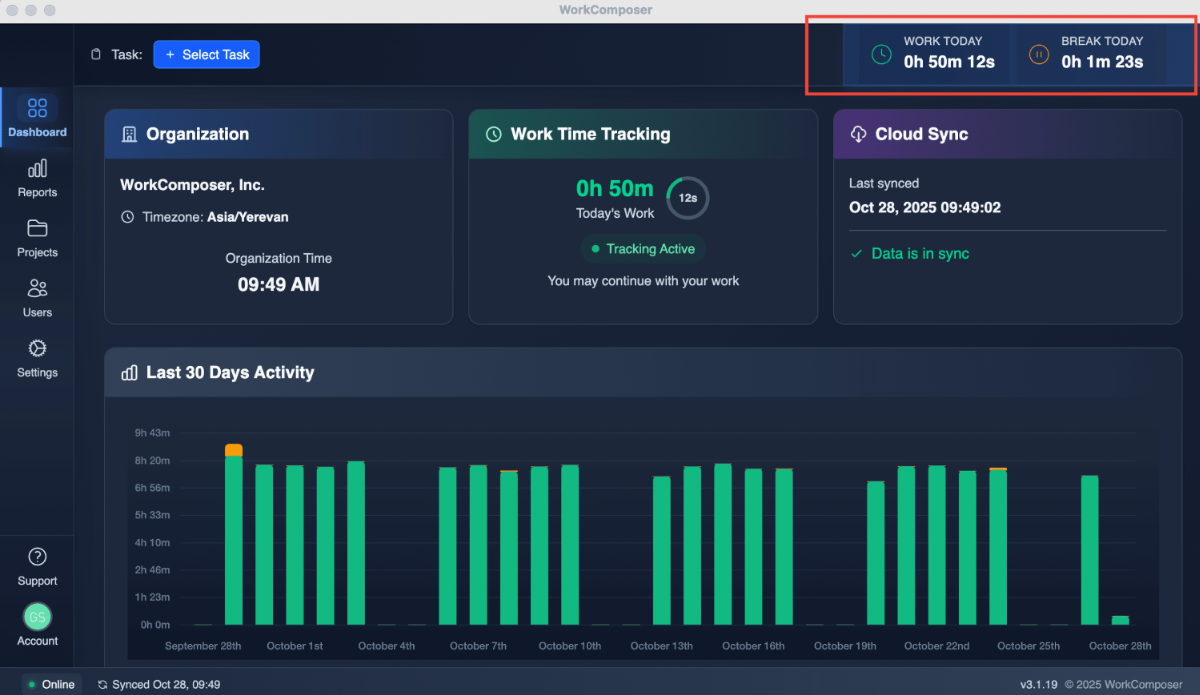
Best for: Teams that prefer discretion, reduced user interaction, and a distraction-free productivity tracking experience.
Extended Silent Mode
This feature minimizes user interaction even further, providing the most discreet tracking experience possible while maintaining transparency and compliance.
How It Works
- Auto-Start on Boot: Tracking begins automatically when the computer starts, just like Silent Mode, with full automatic idle detection and activity tracking
- System Tray Icon Only: The only visible element is the WorkComposer icon in the system tray—users cannot open the main application interface from this icon
- Limited User Access: Users can view basic information through the tray icon but cannot control the app, access detailed reports, or see the full interface
- No Quit Option: The standard "Quit" or "Exit" button is not available—preventing users from casually stopping the tracking
- Compliance-First Design: The visible tray icon is required for compliance purposes, ensuring employees are aware that monitoring is active rather than operating as hidden spyware
- Maximum Control: To stop tracking, users would need to kill the process or uninstall the application—providing administrators with the highest level of tracking reliability
Best for: Privacy-sensitive environments, high-trust setups, and organizations requiring consistent tracking with minimal user control over the monitoring system.
Switching Between Tracking Modes
Administrators can easily configure tracking modes for the entire organization or customize settings for individual users based on their roles and requirements.
To change tracking modes, navigate to the Tracking Preferences Settings in your admin dashboard. From there, you can select the appropriate mode for your team and adjust any additional preferences.
Need Help Choosing?
Have questions about which mode is right for your team? Contact Support—we're here to help you choose the best tracking solution for your organization's unique needs.